n
GitHub Overview
Stars19,311
Watchers203
Forks756
Created:January 5, 2011
Language:Shell
License:MIT License
Topics
None
Star History
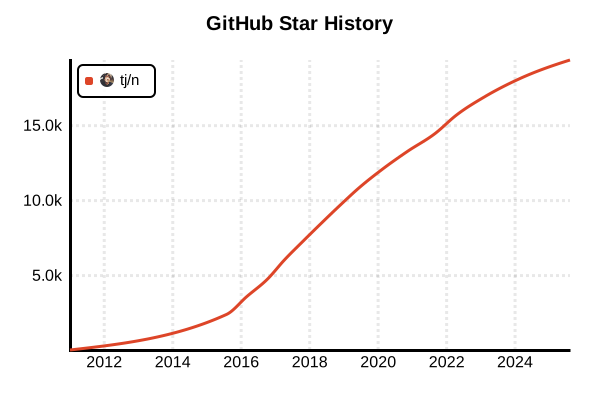
Data as of: 7/20/2025, 02:18 AM
Language Version Management Tool
n
Overview
n is a simple and lightweight Node.js version manager created by TJ Holowaychuk (creator of Express.js). It features a minimal API and fast operation, allowing Node.js version management without complex configuration or shell integration. It provides a simpler and more intuitive interface than nvm, enabling developers to quickly switch between Node.js versions.
Details
Key Features
- Extremely Simple API: Minimal commands with low learning curve
- Fast Operations: Quick version switching with lightweight design
- Global Installation: System-wide Node.js management
- Shell Independent: No need to modify .bashrc or .zshrc
- Interactive Interface: Visual version selection UI
- Caching Functionality: Reuse of downloaded versions
- Cross-platform: Supports macOS and Linux
Architecture
n downloads and caches pre-built Node.js binaries to /usr/local/n/versions/node and creates symbolic links in /usr/local/bin. It manages global Node.js versions and uses a common version system-wide.
Comparison with nvm
- Simplicity: More concise and intuitive command structure
- Speed: Fast startup without shell script loading
- Management Approach: Global management (nvm: per-project)
- npm Package: Installable via npm (nvm: shell script)
- Architecture: Simpler design
Pros and Cons
Pros
- Low Learning Curve: Simple API learnable in minutes
- Fast Startup: No shell configuration loading required
- Intuitive Operation: Interactive version selection UI
- Lightweight Design: Minimal system resource usage
- Easy Installation: Standard installation via npm
- Easy Maintenance: No configuration file management
- Stability: High stability with mature technology
Cons
- Global Management: No automatic per-project switching
- Platform Limitation: No native Windows support, macOS and Linux only
- Limited Features: Limited advanced features and customization
- Project Management: No automatic loading of .nvmrc files
- Team Development: Difficult project-specific environment management
- Permission Issues: Requires write permissions to system directories
Reference Pages
Code Examples
Installation
# Requires existing Node.js (for npm usage)
npm install -g n

# On macOS, also installable via Homebrew
brew install n

# If permission errors occur
sudo npm install -g n

# Verify installation
n --version
Basic Usage
# Check available versions and interactive selection
n

# Install latest LTS version
n lts

# Install latest stable version
n latest

# Install specific version
n 18.19.0
n 20.11.0
n v21.6.0

# Install latest major version
n 18
n 20
Version Management
# List installed versions
n ls

# Switch to specific version
n 18.19.0

# Interactive version selection (use arrow keys)
n

# Use latest installed version
n latest

# Check current version
node --version
Version Removal
# Remove specific version
n rm 18.19.0
n - 20.11.0

# Remove all versions except currently used
n prune

# Remove all except specific version
n --latest prune
n --stable prune
Advanced Usage
# Install prerelease version
n pre

# Temporarily use specific version
n use 18.19.0 app.js
n use 20.11.0 --version

# Display binary download directory
n bin 18.19.0

# Display available remote versions
n list
n ls-remote

# Display cache directory
n which 18.19.0
Environment Configuration
# Set n home directory (default: /usr/local/n)
export N_PREFIX=$HOME/.n

# Add to PATH (when using custom prefix)
export PATH=$N_PREFIX/bin:$PATH

# Configure mirror server
export N_NODE_MIRROR=https://npm.taobao.org/mirrors/node/

# Proxy configuration
export N_NODE_DOWNLOAD_PROXY=http://proxy.company.com:8080

# Enable debug mode
export DEBUG=n
Project Usage
# Project setup script example
#!/bin/bash
# setup.sh

# Install recommended Node.js version
echo "Installing Node.js 18.19.0..."
n 18.19.0

# Install dependencies
echo "Installing dependencies..."
npm install

echo "Setup complete!"
echo "Current Node.js version: $(node --version)"
Management with package.json
{
  "name": "my-project",
  "engines": {
    "node": "18.19.0"
  },
  "scripts": {
    "setup": "n $(cat .nvmrc || echo 18.19.0) && npm install",
    "dev": "node app.js",
    "check-node": "node --version"
  }
}
CI/CD Usage
# GitHub Actions example
name: CI
on: [push, pull_request]

jobs:
  test:
    runs-on: ubuntu-latest
    strategy:
      matrix:
        node-version: [18.x, 20.x, 21.x]

    steps:
    - uses: actions/checkout@v4

    - name: Setup Node.js
      run: |
        sudo npm install -g n
        sudo n ${{ matrix.node-version }}
        node --version
        npm --version

    - name: Install dependencies
      run: npm ci

    - name: Run tests
      run: npm test
Docker Integration
# Dockerfile example
FROM node:18-alpine

# Install n
RUN npm install -g n

# Use specific Node.js version
RUN n 18.19.0

# Create application directory
WORKDIR /app

# Copy package.json and package-lock.json
COPY package*.json ./

# Install dependencies
RUN npm ci --only=production

# Copy application
COPY . .

# Expose port
EXPOSE 3000

# Start application
CMD ["node", "app.js"]
Using n with nvm
# Configuration example in .bashrc or .zshrc
# Separate nvm and n environments

# nvm configuration
export NVM_DIR="$HOME/.nvm"
[ -s "$NVM_DIR/nvm.sh" ] && \. "$NVM_DIR/nvm.sh"

# n configuration
export N_PREFIX="$HOME/.n"
export PATH="$N_PREFIX/bin:$PATH"

# Aliases for switching
alias use-nvm='export PATH="$NVM_DIR/versions/node/$(nvm current)/bin:$PATH"'
alias use-n='export PATH="$N_PREFIX/bin:$PATH"'
Troubleshooting
# Resolve permission errors
sudo chown -R $(whoami) /usr/local/n
sudo chown -R $(whoami) /usr/local/bin/node
sudo chown -R $(whoami) /usr/local/bin/npm

# Clear n cache
rm -rf /usr/local/n/versions/node/*

# Complete uninstallation
npm uninstall -g n
sudo rm -rf /usr/local/n
sudo rm /usr/local/bin/node
sudo rm /usr/local/bin/npm

# Check if current Node.js is managed by n
which node
ls -la $(which node)

# Display debug information
DEBUG=n n 18.19.0
Best Practices
# Setup at project start
echo "18.19.0" > .node-version
n $(cat .node-version)

# README example for team development
# ## Node.js Setup
# This project requires Node.js 18.19.0
#
# Install using n:
# ```
# npm install -g n
# n 18.19.0
# ```

# Check before production deployment
node --version  # Verify expected version
npm --version   # Check corresponding npm version
npm audit       # Security audit
Automation Script Example
#!/bin/bash
# auto-node-setup.sh
# Automatic Node.js setup in project directory

if [ -f ".node-version" ]; then
    NODE_VERSION=$(cat .node-version)
    echo "Setting up Node.js $NODE_VERSION..."
    n $NODE_VERSION
elif [ -f ".nvmrc" ]; then
    NODE_VERSION=$(cat .nvmrc)
    echo "Found .nvmrc, setting up Node.js $NODE_VERSION..."
    n $NODE_VERSION
else
    echo "No version file found, using latest LTS..."
    n lts
fi

echo "Current Node.js version: $(node --version)"